Best LDAC Settings for Android: Enable, Configure & Hear the Difference
Here's a scenario that plays out constantly. An Android user buys a pair of LDAC earbuds — Soundcore Liberty 4 NC, CMF Buds Pro 2, EarFun Air Pro 3. They connect them, play music, and think: "Sounds fine." But they have no idea LDAC isn't actually running. Their phone defaulted to SBC — the lowest quality Bluetooth codec available — because LDAC requires manual activation buried inside Developer Options.
I made the same mistake with my first LDAC pair. Two weeks of SBC audio before I realized the problem. Once I dialed in the best LDAC settings for Android, the difference on lossless tracks was immediate — wider soundstage, cleaner highs, more defined bass. That's what this guide is about.
Follow the steps below to correctly enable LDAC on your Android phone, choose the right bitrate mode, and get the best possible Android Bluetooth audio quality from your earbuds — without destroying your battery in the process.
🎵 What Is LDAC and Why Does It Matter for Android Users?
LDAC is a Bluetooth audio codec developed by Sony. It streams audio at up to 990kbps — nearly four times the 256kbps ceiling of AAC and far above SBC's 328kbps maximum. Higher bitrate means more audio data transmitted per second, which translates to better detail, wider soundstage, and more accurate frequency response on compatible earbuds.
Google built native LDAC support into Android 8.0 (Oreo) in 2017. However, it's not enabled by default on most phones. Manufacturers ship Android with SBC or AAC as the default codec — safe choices that work universally but don't unlock the full capability of premium earbuds. Accessing LDAC audio quality on Android requires a manual step through Developer Options.
LDAC vs SBC vs AAC — What You're Actually Getting
Most Android phones default to SBC when paired with new Bluetooth devices. SBC was designed in the late 1990s. It's stable and universally compatible — but it compresses audio aggressively. AAC is significantly better, especially on iPhone (where it's optimized). LDAC at 990kbps, however, approaches the quality of a wired connection on lossless content. The gap is real and audible on good earbuds and good source material.
⚡ Quick Setup: Enable LDAC in 5 Steps
🎧 The Fast Path to LDAC on Android
- Enable Developer Options: Settings → About Phone → tap Build Number 7 times rapidly.
- Open Developer Options: Settings → System → Developer Options (location varies by brand).
- Find Bluetooth Audio Codec: Scroll to the "Networking" or "Bluetooth" section.
- Select LDAC: Tap "Bluetooth Audio Codec" → choose LDAC from the list.
- Set Quality Mode: Find "Bluetooth Audio LDAC Playback Quality" → choose your preferred mode (see bitrate section below).
🔧 How to Enable LDAC on Android — Step by Step
The path to LDAC settings is the same across most Android phones — but the exact menu location varies by manufacturer. Here's the universal method, followed by brand-specific paths.
Enable Developer Options on Your Android Phone
Go to Settings → About Phone → Software Information. Find "Build Number." Tap it seven times in quick succession. You'll see a countdown: "You are 3 steps away from being a developer." After the seventh tap, a message confirms: "You are now a developer." Developer Options is now unlocked. This process is harmless — it simply reveals a hidden settings menu.
Navigate to Developer Options
Go back to the main Settings menu. On stock Android (Pixel phones): Settings → System → Developer Options. The menu is now visible. Scroll down to the "Networking" section — this is where Bluetooth codec settings live on most Android devices.
Select Bluetooth Audio Codec
Tap "Bluetooth Audio Codec." A popup appears with all available codecs: SBC, AAC, aptX, aptX HD, LDAC (and others depending on your Snapdragon chipset). Select LDAC. A warning popup will say the change requires disconnecting active Bluetooth devices. Confirm the change.
Set LDAC Playback Quality Mode
Return to Developer Options. Find "Bluetooth Audio LDAC Playback Quality." Three options appear: Optimized for Audio Quality (990kbps), Balanced (660kbps), and Optimized for Connection Quality (330kbps). Choose based on your use case — the full breakdown is in the next section.
Reconnect Your Earbuds and Confirm
Put your earbuds back in the case. Open the lid to reconnect. Open your earbuds' companion app and navigate to the device info or connection screen. Apps like Soundcore, Nothing X, and EarFun Audio display the active codec. Confirm "LDAC" appears — not SBC or AAC. If the previous codec still shows, toggle Bluetooth off and on, then reconnect.
📱 How to Enable LDAC on Samsung Android Phones
Samsung One UI moves Developer Options to a slightly different location — and the codec menu has a different name. Here's the exact path for Galaxy S and Galaxy A series phones running One UI 6 and above.
Enable Developer Options on Samsung
Settings → About Phone → Software Information → Build Number. Tap Build Number seven times. Enter your PIN or pattern if prompted. Developer Mode enabled message confirms success.
Find Developer Options on Samsung
Go back to the main Settings. On Samsung: Developer Options appears at the bottom of Settings → scroll past General Management. Tap Developer Options. Scroll down to the "Networking" section.
Select LDAC and Set Quality Mode
Tap Bluetooth Audio Codec → select LDAC. Then find "Bluetooth Audio LDAC Playback Quality" just below — select your preferred bitrate. Reconnect your earbuds. Samsung Galaxy phones with Snapdragon chipsets support all three LDAC bitrate modes reliably. Exynos-based Galaxy phones also support LDAC but may show slightly less connection stability at 990kbps.
📱 LDAC Settings on Xiaomi (MIUI / HyperOS) and OnePlus
Xiaomi / Redmi / POCO — MIUI and HyperOS Path
Enable Developer Options on Xiaomi
Settings → About Phone → All Specs → MIUI Version (or HyperOS Version). Tap the version number seven times. Enter Mi Account password or PIN if prompted.
OnePlus — OxygenOS Path
Enable Developer Options on OnePlus
Settings → About Device → Version → Build Number ×7. Developer Options then appears under Settings → System → Developer Options. Bluetooth codec location: Developer Options → Networking → Bluetooth Audio Codec. OnePlus phones with Snapdragon chipsets support LDAC at all three bitrate modes with excellent connection stability.
🎚️ LDAC 990kbps vs 660kbps vs 330kbps: Which Is Best?
This is the question most guides skip entirely. LDAC has three playback quality modes — and choosing the right one matters significantly for both audio quality and connection stability. Here's what each mode actually delivers.
Maximum LDAC bitrate. Approaches CD-quality wireless transmission. Audible improvement on lossless Tidal, Amazon Music HD, or FLAC files. Requires strong Bluetooth signal within 5–6 meters. Battery drain is highest. Best for: stationary listening at home or desk.
The sweet spot for most users. Strong audio quality with more stable connection over distance and through walls. Audibly better than AAC on good earbuds. Battery cost is moderate. Best for: commuting, office use, walking — anywhere you move around.
Lowest LDAC bitrate. Still better than AAC in theory — but in practice, the audible gap is minimal. Connection is most stable even at longer ranges or through interference. Best for: gym use, outdoor exercise, or environments with heavy 2.4GHz interference.
Which LDAC Bitrate Mode Should You Use?
My recommendation after testing LDAC across 10+ earbuds on multiple Android phones: use 660kbps (Balanced) as your daily setting. It delivers genuinely better audio than AAC, maintains connection through walls and moderate movement, and imposes a manageable battery cost. Reserve 990kbps for dedicated at-home listening sessions on lossless streaming services. Drop to 330kbps only if you experience consistent dropouts at 660kbps.
🎯 Best LDAC Settings for Earbuds on Android — By Use Case
The best LDAC configuration depends on how and where you listen. Here's exactly what to set for each common scenario.
| Use Case | Recommended Mode | Bitrate | Why |
|---|---|---|---|
| Home / desk listening (lossless) | Audio Quality | 990kbps | Stationary + strong signal = full quality |
| Daily commute (bus/train) | Balanced | 660kbps | Movement + interference = need stability |
| Office / work-from-home | Balanced | 660kbps | Best quality without dropout risk |
| Gym / outdoor exercise | Connection Quality | 330kbps | Max stability during movement |
| Standard Spotify/YouTube streaming | AAC or 330kbps | 256–330kbps | Source quality limits benefit of higher bitrate |
| Battery-critical situation | AAC | 256kbps | Switch to AAC for maximum battery savings |
How to Get the Best Sound Quality from LDAC Earbuds on Android
Getting the best sound quality from LDAC earbuds on Android requires more than just enabling the codec. The source material matters equally. LDAC at 990kbps transmitting a 128kbps MP3 sounds identical to AAC — the codec can only deliver what the source contains. For LDAC to make an audible difference, stream from a lossless source: Tidal HiFi Plus, Amazon Music HD, or local FLAC files. Then enable 990kbps at home. That's the combination that makes LDAC genuinely impressive.
📊 LDAC vs AAC vs aptX vs SBC: Full Codec Comparison
Understanding where LDAC sits in the codec landscape helps you make smarter settings decisions — and explains why the same earbuds can sound dramatically different depending on your phone and settings.
| Codec | Max Bitrate | Audio Quality | Latency | Battery Impact | Platform |
|---|---|---|---|---|---|
| LDAC | 990kbps | Hi-Res (up to 96kHz/32bit) | Medium | High | Android 8.0+ |
| aptX Adaptive | ~1Mbps+ | Hi-Res + low latency | Very Low | High | Snapdragon Android |
| aptX HD | 576kbps | Better than CD | Low | Medium | Snapdragon Android |
| AAC | 256kbps | Good (best on iPhone) | Low | Low | Android + iOS |
| aptX | 352kbps | Better than SBC | Low | Medium | Snapdragon Android |
| SBC | 328kbps | Basic — lossy | Medium | Lowest | Universal fallback |
🎧 Which Budget Earbuds Support LDAC on Android?
Not all earbuds support LDAC — even if your Android phone does. The earbud hardware must also include LDAC codec support. Here are the most popular budget-to-mid-range earbuds that support LDAC and work excellently with the Android settings above.
| Earbud | LDAC | aptX Adaptive | Price | Best For |
|---|---|---|---|---|
| Soundcore Liberty 4 NC | ✅ Yes | ❌ No | ~$80 | Best LDAC ANC under $100 |
| Soundcore Space A40 | ✅ Yes | ❌ No | ~$60 | Best LDAC battery life |
| CMF Buds Pro 2 | ✅ Yes | ❌ No | ~$55 | Best LDAC ANC under $60 |
| EarFun Air Pro 3 | ✅ Yes | ✅ Yes | ~$55 | Best codec range at price |
| EarFun Air Pro 4 | ✅ Yes | ✅ Yes | ~$70 | Premium LDAC + aptX |
| Soundcore P40i | ✅ Yes | ❌ No | ~$50 | Budget LDAC entry point |
🍎 Does LDAC Work on iPhone? The Honest Answer
No. LDAC does not work on iPhone — at all. Apple has never supported LDAC in iOS, and there is no workaround or app that enables it. When you connect LDAC earbuds to an iPhone, they automatically fall back to AAC. That's the highest codec iOS supports for Bluetooth audio.
Fortunately, Apple's AAC implementation on iPhone is genuinely excellent — arguably better than Android's AAC handling. iPhone users are not getting the worst Bluetooth audio experience. They're just not getting the hi-res ceiling that LDAC provides on Android. If hi-res wireless audio matters to you, Android is simply the better platform for it.
🛒 Best LDAC Earbuds for Android — Our Top Picks
These are the LDAC earbuds that perform best with the Android settings above — personally tested with LDAC enabled at 660kbps and 990kbps on lossless sources. Find the full field covered in our complete guide to the best budget wireless earbuds for Android.

Soundcore Liberty 4 NC
- LDAC confirmed active via Soundcore app
- Hi-Res Audio certified driver
- 98.5% ANC + HearID EQ
- 10H per bud — 28H total
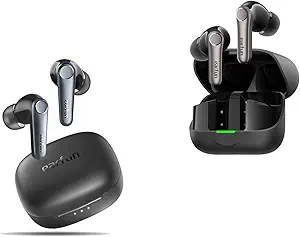
EarFun Air Pro 3
- Both LDAC and aptX Adaptive supported
- aptX Adaptive for low-latency gaming
- 6-mic call quality + wireless charging
- 7H per bud with ANC on

Soundcore Space A40
- LDAC with 50H total battery
- LDAC priority mode in Soundcore app
- Adaptive ANC + wireless charging
- Exceptional value for Android users
For a full comparison of the top two options, read our Soundcore Space A40 vs Liberty 4 NC head-to-head — tested with LDAC enabled on Android throughout.
🎧 Ready to hear LDAC the way it's meant to sound? These earbuds were tested with every setting in this guide — and they deliver.
❓ People Also Ask
💬 Frequently Asked Questions
✅ Summary: Best LDAC Settings for Android
Getting the best LDAC settings for Android takes five minutes — but the audio improvement on lossless content is immediate and real. Enable LDAC through Developer Options, set 660kbps as your daily mode, and switch to 990kbps for dedicated home listening on Tidal or Amazon Music HD. Pair these settings with a capable LDAC earbud and you're accessing hi-res wireless audio that most users with the same earbuds are simply missing. Ready to upgrade your earbuds to something that fully deserves LDAC? Our tested picks for the best budget wireless earbuds on Android have you covered at every price point.


M. Maksudur Rahman Titu is a tech reviewer and digital entrepreneur with over 3 years of hands-on experience testing wireless audio products, smartphones, and consumer electronics. Through Trendy Tech Reviews, he has personally tested 50+ pairs of earbuds and headphones across real-world environments — daily commutes, open offices, gym sessions, and long-haul flights.
His reviews focus on honest, spec-verified analysis designed to help everyday buyers make smarter purchasing decisions — without overspending on brand names. Titu’s testing methodology covers ANC performance, battery endurance, codec support, and app usability before any product is recommended. Contact: reviewstrendytech@gmail.com