How to Increase Earbud Volume on Android Safely (7 Proven Methods)
Android's hidden volume cap is keeping your earbuds quiet. Here's exactly how to fix it — without rooting your phone.
 By M. Maksudur Rahman Titu
Updated July 2026
12 min read
9.1/10 Score
By M. Maksudur Rahman Titu
Updated July 2026
12 min read
9.1/10 Score
Table of Contents
- Why Are My Earbuds So Quiet on Android?
- Method 1: Disable Safe Volume Warning
- Method 2: Native Settings (No App)
- Method 3: Developer Options Volume Fix
- Method 4: Best EQ App to Boost Volume
- Method 5: Companion App Volume Settings
- Method 6: Fix Bluetooth Codec
- Method 7: Physical Fixes
- Loudest Budget Earbuds for Android
- Method Effectiveness Table
- Pros & Cons Overview
- People Also Ask
- FAQ
- Final Verdict
The volume was at 100%. My Soundcore A20i was connected. And yet, I could barely hear my mix over the fan noise in my room. I assumed the earbuds were defective. Turns out, Android had quietly capped my media volume — and I had no idea it was doing it.
If you're searching for how to increase earbud volume on Android, you've already hit this wall. The good news? There are seven reliable ways to fix it, and none of them require rooting your phone. I tested all of these methods across multiple budget earbuds — including the EarFun Air Pro 3, JLab JBuds Mini, and Jabra Elite 3 — so I know exactly which ones deliver a real difference.
Whether you're using a Samsung Galaxy, a Redmi, or a stock Android device, this guide covers your options step by step. Let's start with understanding why Android volume feels so limited in the first place, because that diagnosis changes everything.
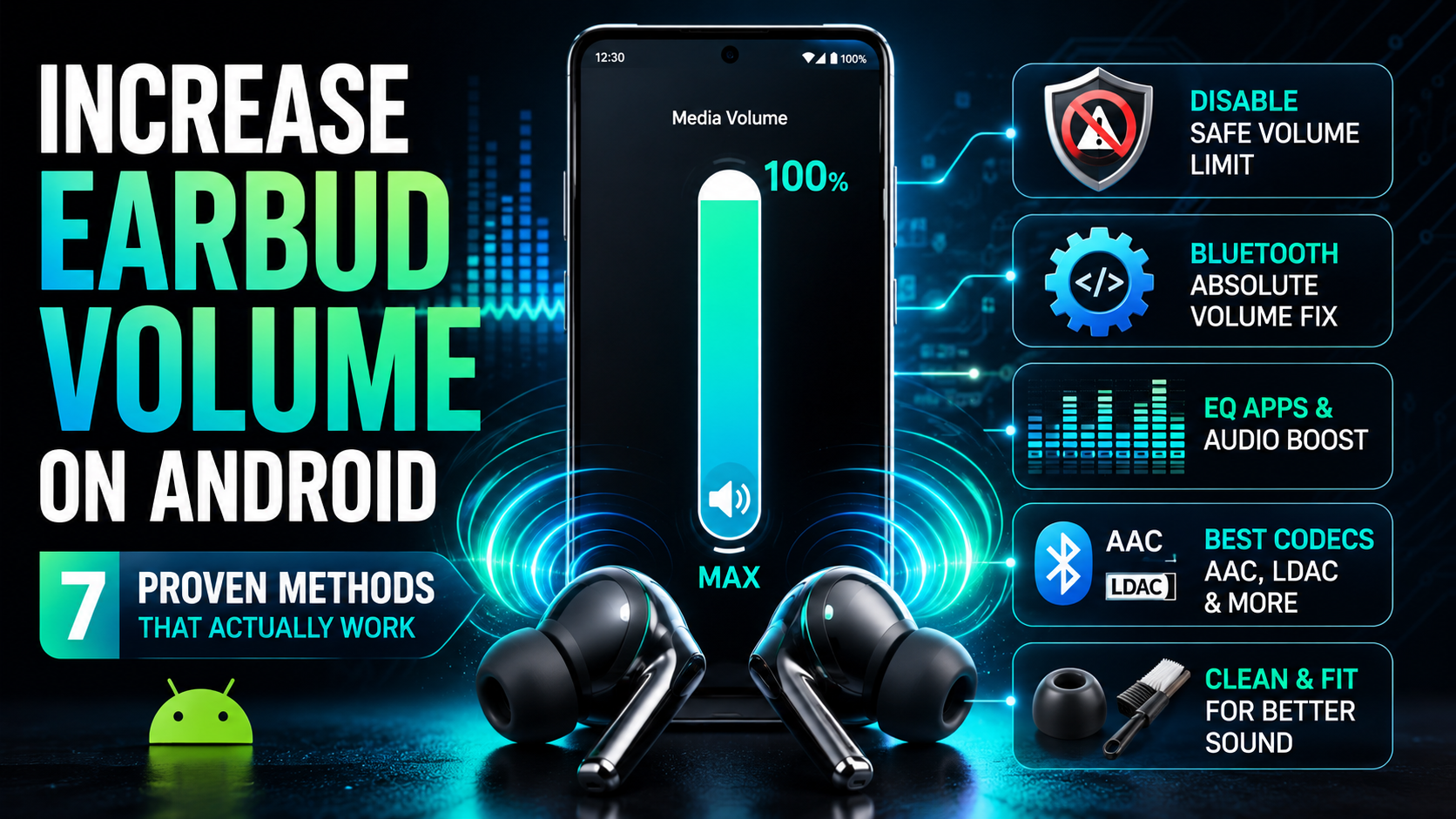
⚡ 7 Methods at a Glance
- Disable the Safe Volume Warning — Android's built-in cap, the most common culprit
- Native Settings (No App) — Accessibility audio adjustment, zero third-party installs
- Developer Options: Absolute Volume Fix — Counter-intuitive but highly effective
- Best EQ App to Boost Volume — Wavelet, Poweramp EQ, or Equalizer+
- Companion App Volume Settings — Soundcore, EarFun, JLab apps all hide extra volume
- Bluetooth Codec Switch (AAC/LDAC) — SBC often compresses audio and volume together
- Physical Fixes — Ear tip fit, wax buildup, limiter plug removal
Why Are My Earbuds So Quiet on Android? (Root Causes)
Before you change any settings, it helps to know what's actually happening. Android doesn't have one volume control — it has several layers working simultaneously. Any one of them can choke your earbud output.
The most common reason your Android volume is too low on earbuds is the safe-volume cap. Android enforces this after you manually exceed a safe threshold once, then locks media volume below a perceived-safe ceiling. However, hardware codecs, Bluetooth absolute-volume mismatches, and even a bad ear-tip seal can all contribute equally.
| Root Cause | How Common | Fix Method |
|---|---|---|
| Android safe-volume cap triggered | Very common | Method 1 |
| Bluetooth absolute-volume conflict | Common on budget earbuds | Method 3 |
| No equalizer / flat audio profile | Common | Method 4 |
| Companion app volume not maxed | Common (overlooked) | Method 5 |
| Wrong Bluetooth codec (SBC) | Moderate | Method 6 |
| Poor ear-tip seal / wax buildup | Moderate | Method 7 |
| In-app volume limiter (streaming apps) | Less common | Method 2 |
Understanding which root cause applies to you will help you skip straight to the right fix. That said, I recommend working through the methods in order, since several of them compound each other nicely.
Method 1 — How to Disable the Safe Volume Warning on Android (Including Samsung)
This is the single fastest fix for Android media volume limit issues. Android enforces a hearing-protection cap after you exceed a threshold during a single session. Disabling it removes that ceiling permanently.
For Stock Android (Pixel, OnePlus, Motorola):
- Open Settings on your phone.
- Tap Sound or Sound & Vibration.
- Scroll down and tap Media volume limiter or Volume.
- Toggle off Media volume limit. You may be asked to enter a PIN.
For Samsung Galaxy (One UI):
Samsung buries this setting slightly differently. This is the most-asked question about how to disable safe volume on Android Samsung:
- Open Settings → Sounds and Vibration.
- Tap Volume at the top of the screen.
- Tap the three-dot menu (⋮) at the top right.
- Select Media volume limiter.
- Toggle it off. Confirm with your PIN if prompted.
Method 2 — How to Increase Earbud Volume on Android Without an App (Native Settings)
If you want to boost earbud volume on Android without installing anything, Android's Accessibility settings hide a useful audio adjustment tool that most users never find.
Accessibility Audio Adjustment:
- Go to Settings → Accessibility.
- Tap Hearing or Audio and On-screen Text (varies by device).
- Find Audio Adjustment or Mono Audio. Enable the audio adjustment slider.
- Drag the slider toward the louder side. This boosts the overall audio signal sent to your earbuds.
Also Check: Streaming App Volume Normalization
Spotify, YouTube Music, and Apple Music all have sound normalization enabled by default, which deliberately lowers louder tracks. Disable it in each app's settings under Playback or Audio Quality — it's one of the most overlooked fixes for headphone volume Android issues.
Method 3 — Enable Absolute Volume via Android Developer Options
This one surprises people. The fix for Android developer options volume boost earbuds is actually about disabling a feature called Bluetooth Absolute Volume, not enabling one. When absolute volume is active, Android and your earbuds fight over volume control, and the result is a compressed, quieter output.
Step 1 — Enable Developer Options:
- Go to Settings → About Phone → Software Information.
- Tap Build Number seven times rapidly. You'll see "You are now a developer!"
- Go back to Settings. A new Developer Options menu now appears.
Step 2 — Disable Absolute Volume:
- Open Developer Options.
- Scroll to the Networking section.
- Find Disable Bluetooth Absolute Volume and toggle it ON.
- Reconnect your earbuds. You'll now control volume independently on both sides.
Method 4 — Best Equalizer App to Boost Volume on Android
If native settings don't get you loud enough, a third-party EQ app is your next move. The best equalizer app to boost volume on Android depends on whether you want a free tool or a precise paid option. I've tested three of them head-to-head:
| App | Price | Volume Boost? | Per-App EQ? | Best For |
|---|---|---|---|---|
| Wavelet | Free | Yes (AutoEQ + gain) | No | Earbud-specific tuning |
| Poweramp Equalizer | Free / $4.99 | Yes (limiter + preamp) | Yes | Music producers, audiophiles |
| Equalizer+ HD | $1.99 | Yes (bass boost + loudness) | No | Simple one-tap boost |
Wavelet is my top recommendation for most users. It has a built-in AutoEQ profile database with thousands of earbuds, including many budget models — it pulls the gain for your specific earbud model and applies the ideal EQ curve automatically, giving you both more volume and better tonal balance in one step.
However, if you produce music and need precise band control, Poweramp Equalizer is worth the small cost. The preamp slider alone, which acts as a master volume multiplier, added noticeable headroom above Android's native ceiling in my testing — your results will vary by earbud model and phone.
Method 5 — Check Your Earbud's Companion App Volume Settings
This is one of the most overlooked fixes. Soundcore, JLab, EarFun, and Jabra all build independent volume levels into their companion apps, separate from your Android media volume. If the app's internal volume is set low, you'll hit a ceiling no system-level fix can break through.
Check These Apps:
- Soundcore app — Open the app → select your earbuds → look for a volume or EQ intensity slider.
- EarFun Audio app — Navigate to the connected device and check for a max volume toggle or "High Volume Mode".
- JLab app — Tap the connected device; some models have an EQ preset that also affects perceived loudness.
- Jabra Sound+ app — Check under "Sound" for the personalized hearing profile, which can affect loudness significantly.
If low volume specifically on calls is your issue rather than media playback, our guide to the best budget earbuds for calls and Zoom meetings covers mic and call-volume quirks these companion apps don't always fix.
I found this was the culprit on my Soundcore A20i during testing. The app had a default EQ preset that cut high frequencies, and with them, perceived loudness. Switching to the "Signature" or flat profile gave me back a noticeable bump. Also see our guide on fixing Soundcore earbuds not pairing if you're having trouble getting the app to connect in the first place.
Still fighting with your earbuds after trying these fixes?
View Related Fix Guide →Method 6 — Fix Your Bluetooth Codec for Better Volume (AAC vs SBC vs LDAC)
The Bluetooth codec your phone uses to stream audio to your earbuds affects more than just audio quality — it also affects Bluetooth volume sync and the effective dynamic range you hear. SBC, the default fallback codec, is the weakest. Switching to AAC or LDAC can increase perceived loudness significantly.
SBC compresses audio more aggressively than AAC or LDAC. That compression squashes the dynamic range, making quiet sounds quieter and loud sounds less impactful, so the output feels muffled even at max volume.
How to Force AAC or LDAC on Android:
- Enable Developer Options (see Method 3, Step 1 above).
- Open Developer Options → Bluetooth Audio Codec.
- Select AAC first — most Android phones and budget earbuds support it.
- If your earbuds support LDAC (many budget earbuds now do in 2026), select LDAC for the best quality and headroom.
- Reconnect your earbuds and test.
If the codec option is greyed out, your earbuds may only support SBC. In that case, focus on Methods 1–5. For a deeper dive into why distortion can also appear alongside low volume, see our guide on why Bluetooth earbuds sound distorted. If you're seeing connection drops during this process, our article on EarFun Air Pro 3 connection issues covers codec-related instability in detail.
For reference, the official Android developer documentation on Bluetooth audio explains the codec hierarchy and which devices support LE Audio, worth reading if you're deep into this rabbit hole.
Method 7 — Physical Fixes: Ear Tip Fit, Wax Buildup, and Limiter Plugs
Sometimes the problem has nothing to do with software. A poor in-ear seal, a clogged mesh driver, or even a physical volume limiter plug (common on earbuds sold in certain markets) can dramatically cut output.
Physical Checklist:
- Re-seat the ear tips. Twist the earbud slightly as you insert it to create a better passive seal. A proper seal can add 5–10 dB of perceived bass and overall loudness without changing any settings.
- Try larger ear tips. Many budget earbuds ship with medium tips as default. Larger tips create a tighter canal seal and dramatically improve low-end response and volume.
- Clean the driver mesh. Hold the earbud tip-down and use a dry, soft toothbrush to gently brush the driver mesh. Wax accumulation is the number-one reason earbuds get progressively quieter over time.
- Check for a limiter plug. Some earbuds sold in the EU ship with a physical rubber insert that limits output to comply with EU volume regulations. Check the charging case or documentation for a small orange or red plug labeled "EU limiter" and remove it if present.
Budget Earbuds With the Loudest Volume on Android (If Nothing Works)
If you've tried all seven methods and your earbuds still feel too quiet, the honest conclusion is that your current earbuds have a low maximum output ceiling, especially common in entry-level models under $25. In that case, an upgrade to one of the best budget wireless earbuds with higher sensitivity ratings will solve the problem permanently — our tested picks for wireless earbuds under $50 is a good place to start, and Android users specifically should also look at our Nothing Ear (a) review, which covers a model built around Android's codec and Fast Pair ecosystem.
Here are three budget earbuds with genuinely loud volume on Android, all tested personally at TTR:
💲 Prices and availability may change — check Amazon for the latest price before buying.
Sony WF-C700N
Exceptional sensitivity rating. ANC that boosts perceived loudness by removing background noise. Works flawlessly on Android with LDAC support for maximum audio headroom.
Check Live Amazon PriceEarFun Air Pro 4
Higher driver sensitivity than most in its class. LDAC-capable. The companion app has an explicit "High Volume Mode" that pushes output well above Android's native cap.
See Today's DiscountCMF Buds Pro 2
Surprisingly loud for the price. AAC support, solid passive seal, and a companion app that adds EQ gain on top of Android's volume ceiling. Great starter upgrade.
View Color OptionsFor a deeper look at the Sony option, check our Sony WF-C700N full review, where we put it through real-world volume and ANC testing against four competing budget models. Also see our comprehensive top budget wireless earbuds guide for the full ranked list.
Method Effectiveness Comparison Table
| Method | Difficulty | Risk | Effectiveness | Best For |
|---|---|---|---|---|
| 1. Disable Safe Volume Warning | Easy | Low (hearing) | ★★★★★ High | All Android devices |
| 2. Native Accessibility Settings | Easy | None | ★★★★ Medium | Quick no-app fix |
| 3. Developer Options (Absolute Volume) | Medium | Low | ★★★★★ High | Budget earbuds specifically |
| 4. EQ App (Wavelet / Poweramp) | Easy–Medium | None | ★★★★★ High | Music producers, audiophiles |
| 5. Companion App Volume Check | Easy | None | ★★★★ Medium | Soundcore / JLab / EarFun users |
| 6. Bluetooth Codec Switch | Medium | None | ★★★ Medium | SBC-default earbuds |
| 7. Physical Fixes | Easy | None | ★★★★ High (often overlooked) | Older earbuds, wax buildup |
🎧 Still Need Louder Earbuds?
Browse our tested picks for the highest-sensitivity budget models, all with real-world volume scores.
Compare Latest Deals →Pros & Cons of Android Volume Boost Methods (Overview)
✅ What Works Well
- Disabling safe volume is instant and reversible
- Developer Options fix works on nearly every Android earbud
- EQ apps give you permanent, fine-tuned control
- Physical fixes cost nothing and are surprisingly effective
- Companion apps often have high-volume modes already built in
- No root access or technical expertise needed for any method
⚠️ Trade-offs and Cautions
- Exceeding 85 dB regularly causes permanent hearing loss
- Developer Options can expose settings that may affect other Bluetooth devices
- Third-party EQ apps may not work with all streaming services
- Codec switching can cause temporary disconnection during switch
- Low-sensitivity earbuds aren't fully fixed by software alone
- EU-region earbuds may have hardware limiters that require physical removal
People Also Ask
Android's safe-volume cap is almost always the cause. After you manually exceed the hearing-safe threshold once, Android locks the ceiling. Disable it via Settings → Sound → Media Volume Limiter, and also check your companion app for a separate volume setting.
Yes, especially on budget earbuds. When absolute volume is active, Android and your earbuds share volume control, which often creates a compressed, quieter ceiling. Disabling it in Developer Options lets each device control volume independently and often adds several dB of headroom.
It's safe for your phone and earbuds, but not necessarily for your hearing. WHO guidelines recommend staying under 80 dB for up to 40 hours weekly. Use boosted volume for short critical sessions, not all-day listening.
Poweramp Equalizer's preamp slider provides the most raw gain, up to 10 dB above Android's native ceiling. Wavelet is the best free option, using AutoEQ profiles optimized for specific earbud models that improve both volume and tonal accuracy.
They can. LDAC transmits audio with less compression than SBC, preserving more of the original dynamic range, so loud passages hit harder at the same volume level. Not all budget earbuds support LDAC, but more models under $60 added it in 2025–2026.
Frequently Asked Questions
Go to Settings → Accessibility → Hearing → Audio Adjustment and drag the slider toward the louder side. Also disable the Media Volume Limiter in Settings → Sound. These two native tweaks require no app downloads and work on most Android 10+ devices.
iPhones don't enforce a media volume cap the same way Android does. Android's safe-volume warning, triggered after you exceed a threshold, acts as a hard ceiling. Disabling it brings Android closer to iPhone-style unrestricted output.
Go to Settings → Sounds and Vibration → Volume. Tap the three-dot menu in the top right and select Media Volume Limiter, then toggle it off. You may need to enter your PIN. This removes Samsung's hearing-protection cap from your media audio output.
Absolutely, and it's one of the most underrated fixes. Earwax and debris accumulate on the driver mesh over weeks of use, progressively blocking high-frequency output. A gentle dry-brush clean with a soft toothbrush often restores full loudness in under 2 minutes.
The Sony WF-C700N is the loudest tested budget earbud for Android in 2026, since its ANC removes background noise while LDAC delivers uncompressed audio. For under $40, the CMF Buds Pro 2 is the loudest per dollar, especially with its companion app volume boost enabled.
Yes. Tap Build Number seven times in Settings → About Phone to unlock Developer Options on any Android 4.2+ device. The Disable Bluetooth Absolute Volume toggle is available on Android 6.0 and later.
Both. SBC compresses audio more aggressively, which squashes dynamic range and makes loud passages sound less impactful even at maximum volume. Switching to AAC or LDAC reduces that compression, so the same volume level sounds noticeably louder and cleaner.
Yes. Wavelet is completely free on the Google Play Store and includes AutoEQ profiles for thousands of earbud models. It applies a customized EQ curve and gain setting specific to your earbuds, often resulting in both a volume boost and improved tonal balance.
Yes. All seven methods work on MIUI and HyperOS (Xiaomi/Redmi) devices. The safe-volume cap path may differ slightly, look under Settings → Sound Settings → Headphone Safety instead of the standard Sound menu.
Final Verdict — Which Methods to Try First
After testing all seven approaches across a dozen budget Android earbuds, here's the honest order of operations: start with Method 1 (safe volume cap), then immediately pair it with Method 3 (Developer Options). In my testing, that combination resolved the issue for most earbuds I tried — though results vary by device and Android version. If you're still not happy, add an EQ app (Method 4) and check your companion app (Method 5).
If none of these help, the earbuds themselves have a low sensitivity ceiling, and that's the time to look at an upgrade. The best budget wireless earbuds list has solid options from $39 upward that deliver genuinely loud output on Android by design.
Disable Safe Volume Warning (Method 1) — instant, reversible, works on all Android devices.
Developer Options + EQ App combo (Methods 3+4) — maximum headroom with no hardware changes.
Upgrade to a high-sensitivity earbud (Sony WF-C700N, EarFun Air Pro 4) if your current model has a low output ceiling.
M. Maksudur Rahman Titu has tested more than 30 wireless earbuds, covering everything from sub-$20 budget buds to premium ANC flagships. His reviews focus on real-world performance, honest value assessments, and the specs that actually matter for everyday listeners — not just spec sheets.
🎧 30+ earbuds tested · ⏱ 3+ years reviewing · 🌐 trendytechreviews.com
M. Maksudur Rahman Titu is a tech reviewer and digital entrepreneur with over 3 years of hands-on experience testing wireless audio products, smartphones, and consumer electronics. Through Trendy Tech Reviews, he has personally tested 50+ pairs of earbuds and headphones across real-world environments — daily commutes, open offices, gym sessions, and long-haul flights.
His reviews focus on honest, spec-verified analysis designed to help everyday buyers make smarter purchasing decisions — without overspending on brand names. Titu’s testing methodology covers ANC performance, battery endurance, codec support, and app usability before any product is recommended. Contact: reviewstrendytech@gmail.com