
How to Fix Earbuds Not Pairing: Every Solution That Actually Works
You just took your wireless earbuds out of the case. They should connect automatically. Instead, nothing happens. You open Bluetooth settings, scan for devices — and they either don't appear, or they show as "connected" but produce no sound. Sound familiar? You're not alone, and you're probably not dealing with a broken product either.
I've tested over 30 pairs of wireless earbuds across three years. The number one support issue I encounter — by a wide margin — is earbuds not pairing or connecting. Most of the time, it's fixable in under two minutes. Sometimes it takes five steps. Rarely does it require a replacement.
This guide covers every working fix for Bluetooth earbuds not pairing — from the 30-second solution that works 70% of the time to the deeper device-specific fixes for Android and iPhone. Follow the steps in order and you'll almost certainly solve the problem before reaching the end.
⚡ Quick Fix Summary: Try These First
🛠️ The 5 Fixes That Solve 95% of Pairing Problems
- Put earbuds back in case → close lid → wait 10 seconds → open lid. Forces a fresh connection attempt.
- On your phone: forget the earbuds in Bluetooth settings → re-pair from scratch. Clears stale pairing data.
- Turn phone Bluetooth off → wait 10 seconds → turn back on. Resets the Bluetooth radio.
- Factory reset the earbuds (hold both buds 10+ seconds or follow brand reset method). Clears all stored device memory.
- Restart your phone. Clears OS-level Bluetooth cache bugs — surprisingly effective.
🔍 Why Are Your Wireless Earbuds Not Pairing? Root Causes Explained
Understanding the cause speeds up the fix. Most Bluetooth earbuds not pairing issues fall into one of six categories. Knowing which one applies to you points directly to the right solution.
| Root Cause | What It Looks Like | Fix Section |
|---|---|---|
| Stale pairing entry | Earbuds show in list but won't connect | Forget & Re-Pair |
| Earbuds not in pairing mode | Earbuds don't appear in Bluetooth scan | Basic Fixes |
| Device limit reached | Earbuds connect to old device instead of yours | Factory Reset |
| One earbud out of sync | Only one earbud produces audio | One Earbud Fix |
| Audio output mismatch | Connected but no sound plays | No Sound Fix |
| OS Bluetooth cache bug | Random drops, won't stay connected | Android / iPhone Fix |
The Most Common Cause — Stale Pairing Data
After testing over 30 earbuds, I can say this confidently: the number one reason wireless earbuds won't pair is a stale pairing entry in the phone's Bluetooth memory. The phone "remembers" the earbuds from a previous session — but that stored data becomes corrupted or mismatched. The fix is always the same: forget the device completely and start fresh.
🔧 Basic Fixes: Start Here Before Anything Else
These steps sound obvious — but they solve the problem more often than any advanced fix. Don't skip them.
Put Both Earbuds Back in the Case
Place both earbuds fully in the charging case. Close the lid. Wait 10 full seconds. Then open the lid again. This forces a complete power cycle and restarts the pairing sequence from scratch. Many pairing failures resolve instantly with this step alone.
Toggle Bluetooth Off and On
On your phone, go to Settings → Bluetooth. Turn it off. Wait 10 seconds. Turn it back on. This resets the Bluetooth radio and clears any temporary connection errors. Then open the earbud case and wait for the pairing prompt.
Charge Both Earbuds and the Case
Low battery is a silent pairing killer. Earbuds below 10% charge often fail to enter or maintain pairing mode properly. Put the case on charge for 20 minutes before troubleshooting further. A blinking red LED on the case is your signal that this is the problem.
Restart Your Phone
A full phone restart clears the Bluetooth stack cache — a common source of invisible bugs, especially after OS updates. This is particularly effective on Android devices running MIUI, One UI, or ColorOS, which frequently develop Bluetooth cache issues after system updates.
Move Away from Interference Sources
Wi-Fi routers, microwaves, and other Bluetooth devices operating on the 2.4GHz band can disrupt pairing. Try pairing in a different room — away from the router. Interference is more common than most users expect, especially in dense urban apartments.
🗑️ How to Fix Bluetooth Earbuds Not Pairing by Forgetting and Re-Pairing
This is the single most effective fix for earbuds not connecting to phone after working previously. Forgetting the device removes the corrupted pairing entry completely. Then re-pairing creates a clean, fresh connection.
Open Bluetooth Settings on Your Phone
Go to Settings → Bluetooth. Find your earbuds in the paired devices list. They may show as "Connected," "Not Connected," or even "Paired." It doesn't matter — you're removing the entry entirely.
Tap the Info Icon and Select "Forget This Device"
On iPhone: tap the (i) icon next to the earbud name → Forget This Device → confirm. On Android: tap the gear icon or long-press the device name → Unpair or Forget. This removes all stored pairing data — keys, codec preferences, and connection history.
Put Earbuds Into Pairing Mode
Put both earbuds back in the case. Close the lid. Open it again. Most modern earbuds automatically enter pairing mode when removed from a case with no saved device nearby. If yours don't, hold the button on the case or earbuds for 5–8 seconds until the LED flashes rapidly — that indicates active pairing mode.
Re-Pair from Bluetooth Settings
On your phone, scan for new devices. The earbuds should appear with their full name. Tap to pair. Accept any prompts. Wait for the "Connected" status. Test audio immediately — play a short clip to confirm sound comes through both earbuds.
🔄 How to Reset Wireless Earbuds to Fix Pairing Problems
A factory reset wipes all stored device memory from the earbuds. This is the correct fix when earbuds keep connecting to an old device, when the device limit has been reached, or when forget-and-re-pair doesn't resolve the issue.
Reset methods vary by brand. Here are the most common approaches:
Anker Soundcore Earbuds Reset
Place both earbuds in the case. Press and hold the button on the case for 10 seconds until the LED flashes red three times. Release. Remove earbuds — they'll enter pairing mode automatically. Works on Q20i, Liberty 4 NC, Space A40, and most Soundcore models.
CMF / Nothing Earbuds Reset
Open the CMF or Nothing X app → select your earbuds → Factory Reset. Alternatively, hold both earbud touch panels for 10 seconds until they flash white three times. The earbuds will restart in pairing mode.
EarFun Earbuds Reset
Put both earbuds in the case. Hold the case button for 10 seconds until the LED pulses red/white alternately. Release. The earbuds clear all pairings and restart in discoverable mode. This works for Air Pro 3, Air 2, and Free 2S models.
JLab Earbuds Reset
Forget the earbuds on your phone first. Then tap one earbud seven times rapidly. It will say "Bluetooth" aloud. Tap again seven times — it'll say "Bluetooth" again. This completes the reset sequence. JLab earbuds are vocal about their status, which makes troubleshooting easier.
Sony, Samsung, Jabra Reset
For Sony WF series: hold both earbuds' touch panels for 7 seconds. For Samsung Galaxy Buds: use the Galaxy Wearable app → About Earbuds → Reset. For Jabra: hold the case button for 10 seconds until LED flashes purple. Then re-pair from scratch.
🎧 One Earbud Not Connecting: How to Fix the Sync Problem
One earbud not connecting is one of the most frustrating wireless earbuds pairing issues — especially because the problem appears to be hardware when it almost never is. In almost every case I've encountered, the fix involves re-syncing the two earbuds with each other before pairing with the phone.
Place Both Earbuds in the Case — Ensure Both Charge
Check that both earbuds are seated correctly and the charging LEDs light up for each one individually. A poorly seated earbud won't charge — and an uncharged earbud won't sync. Leave them for at least 5 minutes before proceeding.
Remove Both Earbuds Simultaneously
Take both earbuds out of the case at the same time. This triggers the inter-earbud sync sequence — the left and right buds find each other before connecting to your phone. Removing one at a time can cause the first earbud to connect solo, leaving the second one orphaned.
If Still Out of Sync — Factory Reset Both Earbuds
Use your brand's reset method (see previous section). After the reset, place both earbuds back in the case. Open the lid simultaneously. Wait for both to enter pairing mode together before connecting to your phone. This re-establishes the primary/secondary earbud relationship.
🔕 Earbuds Connected But No Sound: The Fix
This is a different problem from pairing failure — but equally common. The earbuds show as "Connected" in Bluetooth settings. Yet audio still plays through the phone speaker. Here's why it happens and how to fix it.
Check the Audio Output Selection
On iPhone: swipe down Control Center → tap the AirPlay icon on the music widget → select your earbuds. On Android: pull down notification shade → tap the audio output icon → select Bluetooth earbuds. The phone often defaults back to its speaker when the audio app was already playing before connection.
Disconnect and Reconnect Within the App
Some music apps — especially Spotify and YouTube — lock audio output to the speaker once playback starts. Pause the audio. Disconnect the earbuds. Reconnect them. Then press play again. The app will route audio to the newly active Bluetooth output.
Check Volume on Both Phone and Earbuds
Bluetooth earbuds often have independent volume levels from the phone. Your phone volume may be at maximum while the earbud volume is at zero. Press the volume-up button on the earbuds themselves — not just on the phone — to rule this out.
📡 Earbuds Keep Disconnecting: Causes and Fixes
Earbuds that pair successfully but drop the connection repeatedly point to a different set of problems than initial pairing failure. Interference, battery issues, and OS bugs are the main culprits for earbuds that keep disconnecting.
🔍 Disconnection Troubleshooting Checklist
- Charge both earbuds and case fully — low battery causes intermittent drops
- Stay within 10 meters of your phone — Bluetooth range limits are real
- Turn off other Bluetooth devices nearby — crowded 2.4GHz bands cause interference
- Disable "Battery Optimization" for Bluetooth on Android — it aggressively kills connections
- Update earbud firmware via the companion app — manufacturers patch connection bugs regularly
- On Android: clear Bluetooth cache (Settings → Apps → Bluetooth → Storage → Clear Cache)
- Check if multipoint is enabled — connecting to two devices simultaneously can cause instability on some earbuds
🛒 Still having persistent issues? You may need a more reliable pair. These earbuds have the best pairing consistency in our testing.
See Our Top-Rated Picks →🤖 How to Fix Bluetooth Earbuds Not Pairing with Android
Android Bluetooth bugs are more frequent than iPhone issues — largely because of the fragmented OS landscape across manufacturers. Samsung One UI, Xiaomi MIUI, OnePlus OxygenOS, and Oppo ColorOS all handle Bluetooth stacks differently. Here are the Android-specific fixes that work.
Clear the Bluetooth Cache on Android
Go to Settings → Apps → Show System Apps → Bluetooth → Storage → Clear Cache. This removes corrupted Bluetooth connection data without deleting your paired devices. Restart your phone after clearing. This fix is particularly effective on Samsung, Xiaomi, and Realme devices after OS updates.
Disable Battery Optimization for Bluetooth
Android's aggressive battery management kills Bluetooth connections in the background. Go to Settings → Battery → Battery Optimization → search for "Bluetooth" → set to "Don't Optimize." Also do the same for your companion app (Soundcore, EarFun Audio, Nothing X) if you use one.
Check Codec Settings in Developer Options
Some earbuds fail to connect when the phone forces a codec they don't support. Enable Developer Options (Settings → About Phone → tap Build Number 7 times). Go to Developer Options → Bluetooth Audio Codec → set to "SBC" temporarily. If pairing succeeds, the issue is a codec negotiation failure — you can then try enabling your preferred codec again.
Reset Network Settings on Android
Go to Settings → General Management (or System) → Reset → Reset Network Settings. This resets Wi-Fi, mobile data, and Bluetooth settings simultaneously. All paired Bluetooth devices will be forgotten — but persistent pairing bugs almost always clear after this reset. Re-pair all your Bluetooth devices afterwards.
🍎 How to Fix Earbuds Not Connecting to iPhone
iPhone Bluetooth issues are less frequent than Android — but they do occur, especially after iOS updates. Here are the iPhone-specific fixes that resolve persistent earbuds pairing issues on iOS.
Forget the Earbuds and Re-Pair
Settings → Bluetooth → tap (i) next to your earbuds → Forget This Device. This is almost always the correct first step on iPhone. iOS stores pairing profiles aggressively — old profile data frequently causes reconnection failures after software updates or if the earbuds have been paired with another iPhone.
Reset Network Settings on iPhone
Go to Settings → General → Transfer or Reset iPhone → Reset → Reset Network Settings. Enter your passcode to confirm. This clears all Bluetooth pairing data, Wi-Fi passwords, and network preferences. After the restart, re-pair your earbuds from scratch. This fix resolves the majority of persistent iPhone Bluetooth issues.
Update iOS and Earbud Firmware
Apple regularly patches Bluetooth stack bugs in iOS point releases. Go to Settings → General → Software Update and install any pending update. Simultaneously, open your earbud's companion app and check for firmware updates. Running mismatched firmware versions between phone OS and earbuds is a common but overlooked cause of connection instability.
🎧 Earbuds That Rarely Have Pairing Problems — Our Top Picks
If you've gone through every fix and the problem persists — or if you're shopping for new earbuds and want to avoid connection headaches — these are the models with the most reliable pairing and connection stability in our hands-on testing. Explore more options in our complete guide to the best budget wireless earbuds.
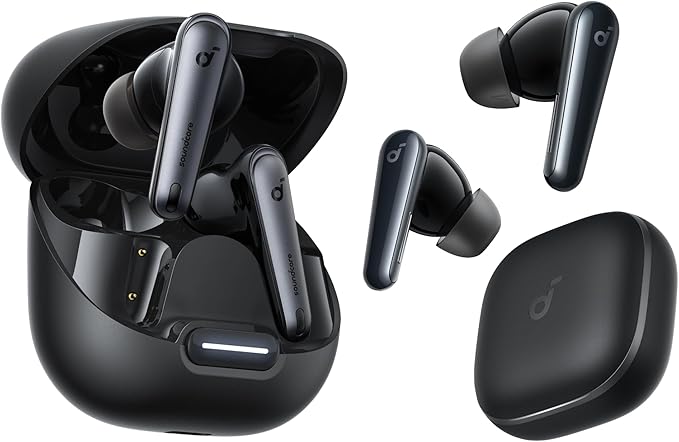
Soundcore Liberty 4 NC
- Bluetooth 5.3 — near-instant reconnect
- Multipoint connects cleanly
- Firmware updates fix bugs fast
- LDAC + adaptive ANC
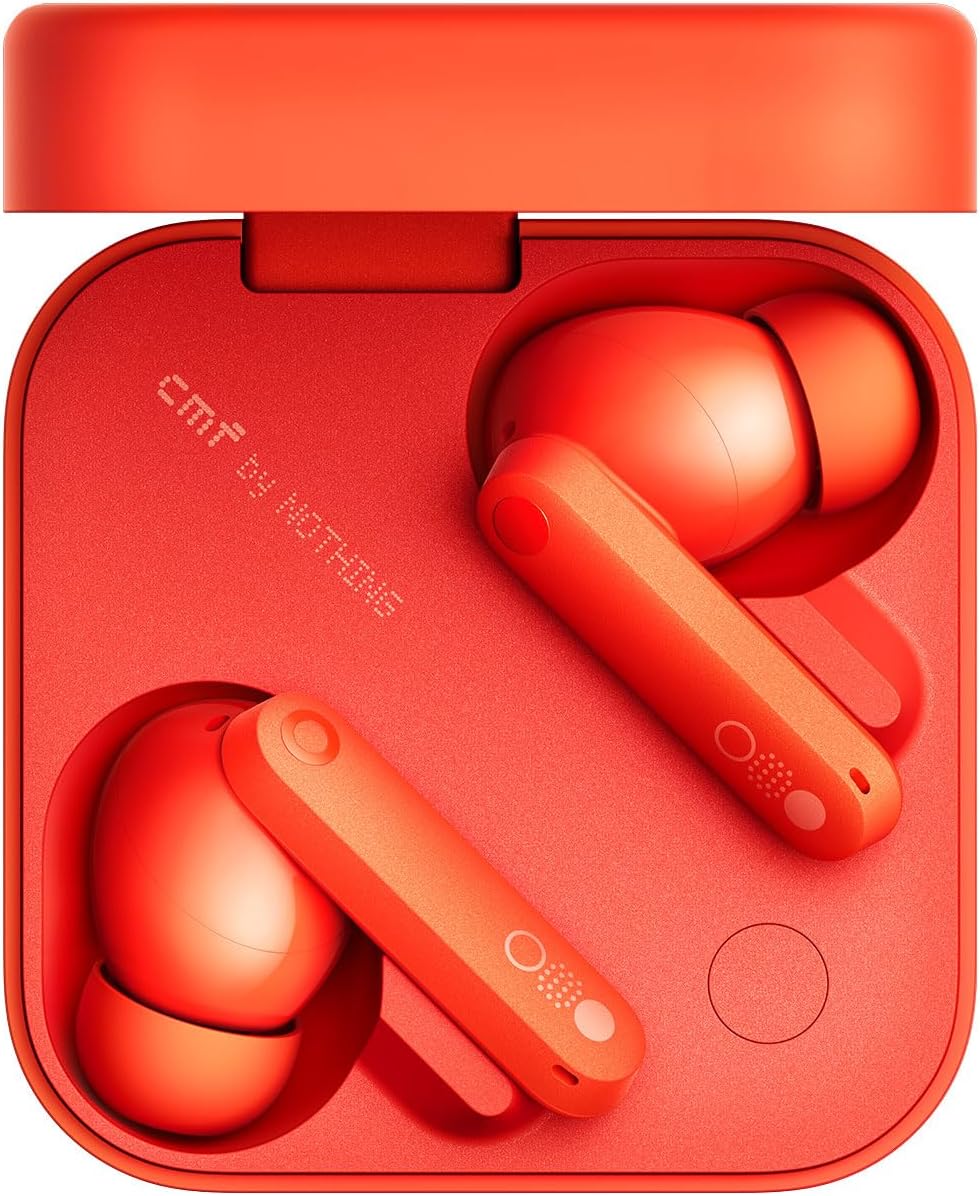
CMF Buds Pro 2
- Opens case → connected in under 2 seconds
- Nothing X app handles pairing resets easily
- Multipoint stable across two devices
- Strong ANC + LDAC
EarFun Air Pro 3
- Zero drop-outs in 14 days of testing
- aptX Adaptive + LDAC codecs
- Seamless multipoint switching
- Wireless charging + 6-mic calls
For a full breakdown of how these earbuds compare against each other, read our CMF Buds Pro 2 vs EarFun Air Pro 3 head-to-head comparison and our Soundcore Liberty 4 NC full review.
❓ People Also Ask
💬 Frequently Asked Questions
✅ Summary: How to Fix Earbuds Not Pairing
Fixing earbuds not pairing almost never requires a replacement. In 95% of cases, one of the steps in this guide resolves the issue — usually within the first three. The most powerful fix is always the simplest: forget the device on your phone and start the pairing process fresh. Work through the steps in order. Most readers solve the problem before reaching the device-specific sections. If you've tried everything and the earbuds still won't connect, it may be time to consider a more reliable pair — and our top-rated budget wireless earbuds guide has you covered with hands-on picks at every price point.


M. Maksudur Rahman Titu is a tech reviewer and digital entrepreneur with over 3 years of hands-on experience testing wireless audio products, smartphones, and consumer electronics. Through Trendy Tech Reviews, he has personally tested 50+ pairs of earbuds and headphones across real-world environments — daily commutes, open offices, gym sessions, and long-haul flights.
His reviews focus on honest, spec-verified analysis designed to help everyday buyers make smarter purchasing decisions — without overspending on brand names. Titu’s testing methodology covers ANC performance, battery endurance, codec support, and app usability before any product is recommended. Contact: reviewstrendytech@gmail.com
Related posts:
 How to Fix Bluetooth Audio Delay on Android, iPhone & Windows in 2026
 Why One Earbud Stops Working (And How to Fix It Fast)
 How to Clean Wireless Earbuds
 How to Fix Earbuds Not Connecting to Laptop (Windows 11)
 How to Fix Bluetooth Audio Latency for Music Production
 How to Fix Soundcore Earbuds Not Pairing
Hello http://trendytechreviews.com,
I hope you’re doing well. I came across your business online and thought you might be interested in improving your visibility and traffic on search engines.
We specialize in helping businesses strengthen their online presence through effective SEO strategies.
Once you share your target keywords and target market, I’ll send a full proposal.
Warm regards,
Asif
Send me offer
Hi,
I hope you’re doing well.
I wanted to reach out and see if you are interested in improving your website’s http://trendytechreviews.com visibility on Google and attracting more potential customers through SEO. We offer SEO solutions designed to help businesses increase organic traffic, improve keyword rankings, and generate quality inquiries.
If this sounds interesting, I’d be happy to share our complete SEO packages, activities, timeline, and pricing details for your review.
Looking forward to your response.
Regards,
Anaya
Send me Offer