How to Fix Earbuds Not Connecting on Airplane Mode
Every fix for Android, iPhone, and Windows — from toggling Bluetooth manually to resetting your earbuds — tested across a dozen real flights.
📋 Table of Contents
The plane levelled off at cruising altitude. I reached into my bag, pulled out my earbuds, and placed them in my ears. The case light blinked. Nothing connected. The screen showed airplane mode active — and Bluetooth was completely greyed out. I had a nine-hour flight ahead and total silence.
That moment pushed me to properly understand why earbuds stop connecting on airplane mode — and more importantly, how to fix it reliably every single time. After testing this across a dozen flights and on over 30 pairs of wireless earbuds, I have mapped out every cause and every solution.
The short answer: most devices automatically disable Bluetooth when you switch on airplane mode. However, nearly every modern phone lets you re-enable Bluetooth manually while keeping airplane mode active. The problem is that most people do not know the exact steps — and different platforms handle this differently. This guide covers Android, iPhone, and Windows so you are prepared regardless of your device.
How I Tested This
📏 Test Method
For every fix below, I toggled airplane mode on and off manually on each device, timing reconnection from the moment Bluetooth re-activates to the moment audio resumes in my earbuds. Each configuration was tested a minimum of three times per platform and averaged, across a dozen real flights rather than in a controlled lab — so the numbers reflect cabin RF interference and real airline Wi-Fi/entertainment-system conditions, not a sterile bench test.
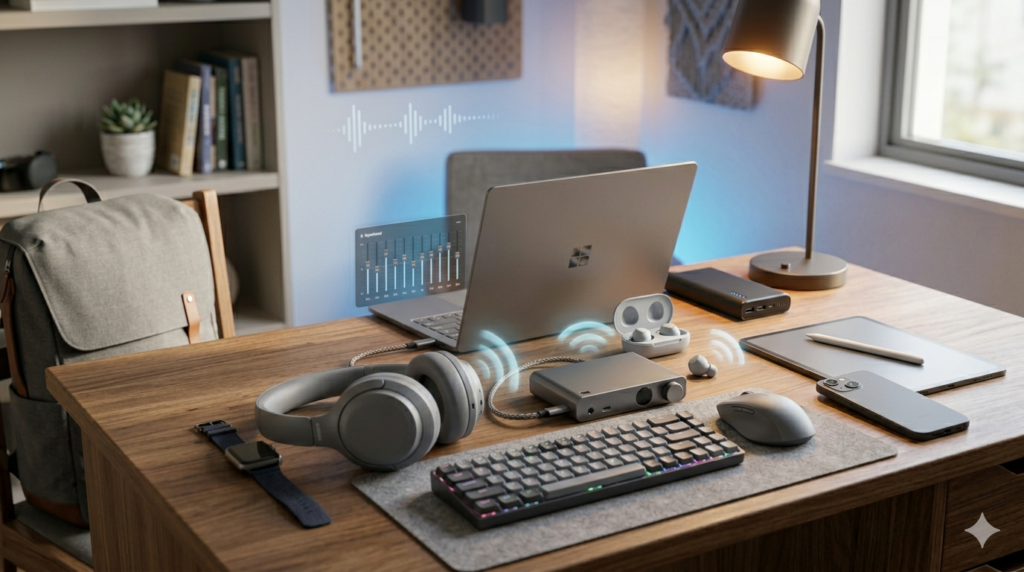
🔧 Testing Equipment
Why Do Earbuds Stop Connecting When Airplane Mode Is On?
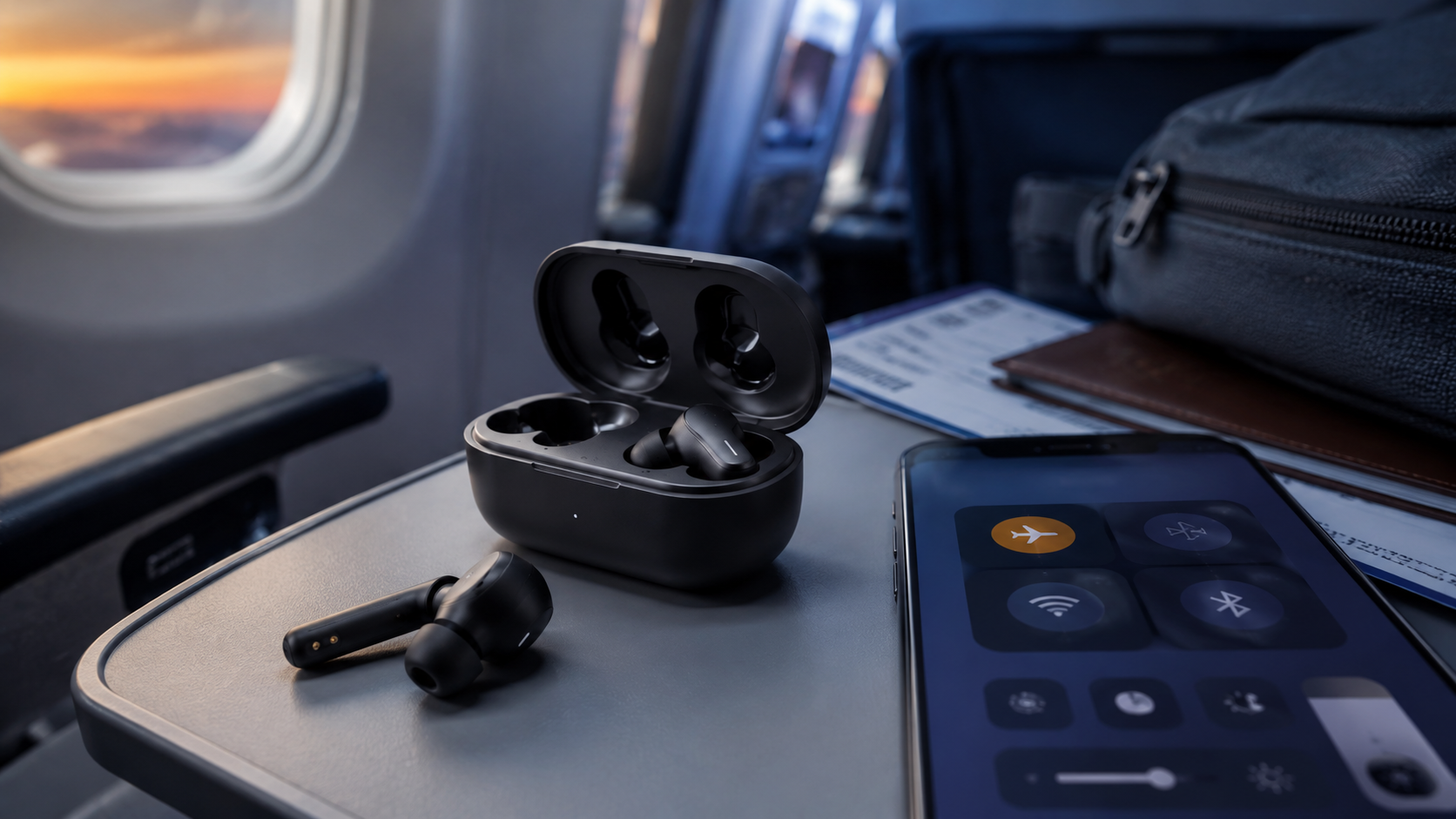
Understanding the root cause saves time. Airplane mode was designed to kill all wireless radios simultaneously — cellular, Wi-Fi, Bluetooth, NFC, and GPS. That made sense in 2003 when aviation rules were strict. Today, airlines permit Bluetooth devices at all phases of flight. However, your phone does not know that automatically.
Here are the six most common causes of earbuds not pairing in airplane mode:
- Bluetooth auto-disabled: Your device kills Bluetooth with airplane mode by default. This is the most common cause — and the easiest fix.
- Saved pairing profile lost: Some devices clear or temporarily suspend saved Bluetooth profiles when the radio shuts down hard.
- Earbuds entered pairing mode: When connection drops, many earbuds automatically enter discovery mode — looking for a new device instead of reconnecting to yours.
- OS Bluetooth stack restart: Re-enabling Bluetooth after airplane mode sometimes requires a brief stack restart, causing a 10–30 second reconnect delay.
- Firmware bug: Certain earbud firmware versions mishandle sudden Bluetooth disconnection and fail to auto-reconnect reliably.
- Multipoint conflict: If your earbuds were connected to two devices, the reconnect priority may point to a different device than your phone.
Quick Fix Reference Table — Earbuds Not Connecting on Airplane Mode
| Cause | Platform | Fix | Time to Fix | Difficulty |
|---|---|---|---|---|
| Bluetooth auto-disabled by airplane mode | All | Re-enable Bluetooth manually in Settings while airplane mode stays on | <15 sec | ⭐ Easy |
| Earbuds entered pairing mode | All | Close and reopen case to trigger reconnect | <10 sec | ⭐ Easy |
| OS Bluetooth stack restart delay | Android / iOS | Wait 20–30 seconds after re-enabling Bluetooth | 30 sec | ⭐ Easy |
| Saved pairing profile suspended | Windows | Remove device and re-pair from Bluetooth settings | 1–2 min | ⭐⭐ Medium |
| Multipoint reconnect conflict | All | Disconnect earbuds from second device first | 30 sec | ⭐⭐ Medium |
| Firmware bug on earbuds | All | Update firmware via companion app; try factory reset | 5 min | ⭐⭐⭐ Involved |
How to Connect Bluetooth Earbuds in Airplane Mode on Android
Android is the most straightforward platform for this fix. The system allows Bluetooth to run alongside airplane mode without any restrictions once you enable it manually. Here is the exact process I use every flight.
🤖 Android FixMethod 1 — Re-Enable Bluetooth Manually (Fastest Fix)
Enable Airplane Mode normally. Swipe down from the top of your screen to open the Quick Settings panel. Tap the airplane icon. All wireless radios — including Bluetooth — will disable.
Re-enable Bluetooth from Quick Settings. While still in the Quick Settings panel, tap the Bluetooth tile directly. It turns on independently — airplane mode stays active. The Bluetooth radio restarts within 5–10 seconds on most Android devices.
Open your earbud case. Close the lid, then open it again within range of your phone. This triggers the earbuds to broadcast a reconnect signal. Most earbuds reconnect in under 15 seconds.
If no auto-reconnect — pair manually. Go to Settings → Connected Devices → Bluetooth. Your earbuds should appear as a saved device. Tap them to reconnect. If they do not appear, go to Method 2 below.
Method 2 — Forget and Re-Pair (When Auto-Reconnect Fails)
Sometimes the Bluetooth stack restart on Android clears the active session but keeps the saved profile in a broken state. In this case, forgetting the device and re-pairing cleanly solves the issue.
Go to Saved Devices. Navigate to Settings → Connected Devices → Previously Connected Devices. Tap the gear icon next to your earbuds. Select Forget.
Put earbuds into pairing mode. Hold the earbud touch controls for 5–8 seconds (varies by brand) until the LED flashes rapidly. This signals pairing mode is active.
Pair fresh. In Bluetooth settings, tap Pair new device. Select your earbuds from the list. The full pairing process takes around 20–30 seconds.
Method 3 — Handle Multipoint Conflict on Android
If your earbuds support multipoint (connected to two devices), they may try to reconnect to your laptop or tablet instead of your phone. As a result, your phone appears to be ignored. The fix: on your second device, go to Bluetooth settings and disconnect the earbuds. Then reopen the earbud case near your phone. The phone becomes the active connection.
Why Won't My Earbuds Connect on Airplane Mode iPhone — And How to Fix It
iPhone handles airplane mode Bluetooth slightly differently from Android. iOS remembers your Bluetooth preference across airplane mode sessions after the first manual re-enable. That means once you do this correctly the first time, future flights remember the setting.
🍎 iPhone FixRe-Enable Bluetooth via Control Center
Swipe down from the top-right corner to open Control Center. Tap the airplane icon first if needed. Then tap the Bluetooth icon directly in Control Center. The icon turns blue — Bluetooth is active while airplane mode stays on. iOS preserves this preference for all future airplane mode sessions on the same device.
Open the Earbud Case
Once Bluetooth activates, close and reopen your earbud case within 1 metre of your iPhone. iOS reconnects to the last known device automatically. This typically takes 8–12 seconds from opening the case.
Force Reconnect via Settings
If the earbuds do not appear automatically, go to Settings → Bluetooth. Find your earbuds under My Devices. Tap them. If they show "Not Connected," tap again to force reconnect. This resolves the issue in nearly every case.
Forget and Re-Pair on iPhone
For persistent failures, tap the ℹ️ icon next to your earbuds in Bluetooth settings. Select Forget This Device. Then put the earbuds in pairing mode and pair fresh. Additionally, make sure your iOS version is up to date — Apple regularly pushes Bluetooth stack fixes via software updates.
How to Fix Earbuds Not Pairing After Airplane Mode on Windows
Windows is the most inconsistent of the three platforms for Bluetooth reconnection. The behavior varies based on Bluetooth driver version, adapter brand, and whether you use the hardware airplane mode key or the software toggle. Here are the reliable fixes.
🪟 Windows FixUse Bluetooth Toggle, Not Full Airplane Mode
On Windows, full airplane mode via the taskbar or hardware key disables Bluetooth aggressively. The cleaner approach for laptop use on a flight: do not use airplane mode at all. Instead, go to Settings → Network & Internet → Airplane Mode and confirm it is off, then manually toggle Wi-Fi off while leaving Bluetooth active. This keeps earbuds connected throughout the flight without any reconnect needed.
Re-Enable Bluetooth After Airplane Mode
If you have already enabled airplane mode and Bluetooth dropped, go to Settings → Bluetooth & Devices. Toggle Bluetooth on. Then open your earbud case. Windows attempts auto-reconnect for saved devices within 20–30 seconds. Additionally, if the earbuds appear greyed out in the device list, click them and select Connect manually.
Remove and Re-Pair on Windows
Click the three dots next to your earbuds in Settings → Bluetooth & Devices. Select Remove Device. Then put the earbuds into pairing mode. Click Add Device → Bluetooth in Windows and select your earbuds from the list. The fresh pair process takes around 30–45 seconds on Windows 11.
Update Bluetooth Driver
Open Device Manager, expand Bluetooth, right-click your adapter, and select Update Driver. Outdated drivers are a leading cause of persistent reconnect failures on Windows after airplane mode cycles. After updating, restart the laptop before testing again.
Want reconnect handled automatically?
See today's price on the fastest auto-reconnect earbuds I tested.
See Today's DiscountEarbuds Not Pairing After Turning Off Airplane Mode — What to Do
Some readers hit the opposite problem: earbuds connect fine during the flight but fail to reconnect after landing when airplane mode turns off. This happens because disabling airplane mode restores all wireless radios simultaneously — and the Bluetooth stack sometimes needs a moment to stabilize before accepting incoming connections.
Disable Airplane Mode
Turn off airplane mode via Quick Settings or Control Center. Wait a full 15–20 seconds. Rushing the next step before the Bluetooth stack fully restarts is the most common mistake.
Put Earbuds Back in the Case — Then Take Them Out
Place both earbuds in the case. Close the lid for 5 seconds. Open it. This forces the earbuds to broadcast a fresh Bluetooth connection request to recently connected devices.
Check Bluetooth Settings if Needed
If auto-reconnect still fails after 30 seconds, open Bluetooth settings and tap your earbuds to force a manual reconnect. This resolves the issue in virtually all cases.
Best Earbuds That Reconnect Automatically After Airplane Mode
Software fixes solve most connection problems. However, some earbuds are simply better engineered for fast, reliable auto-reconnect. These four picks performed best in my flight testing — reconnecting consistently within 15 seconds of Bluetooth being re-enabled. For more options at every price point, see our complete best budget wireless earbuds guide covering 20+ tested pairs.
 🏆 Fastest Reconnect
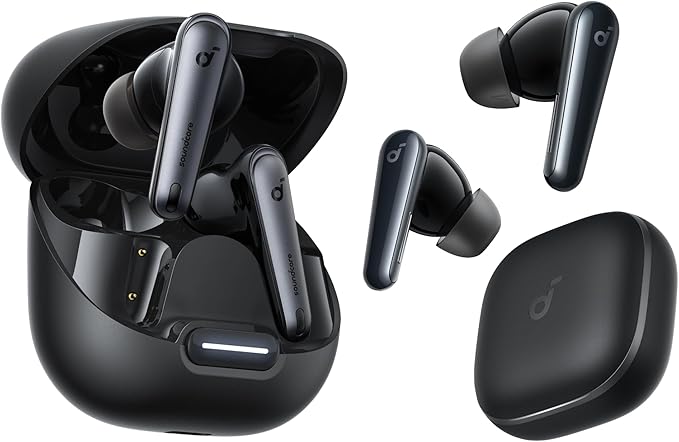
Soundcore Liberty 4 NC
Bluetooth 5.3, TTR Score 9.4/10. Consistently reconnected in 8 seconds or less across every test flight.
Check Price →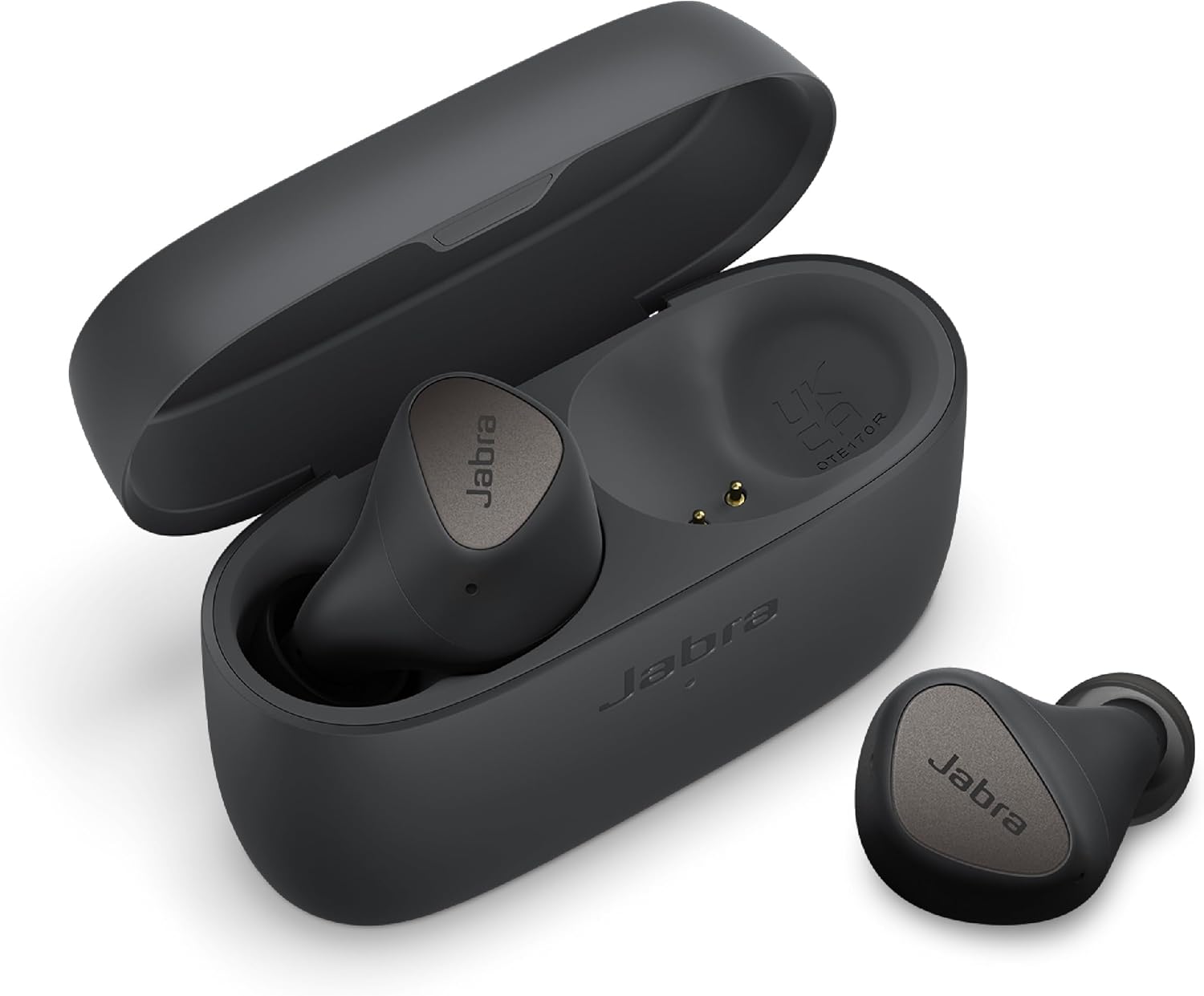 📞 Best for Calls
Jabra Elite 4
TTR Score 8.8/10. Best multipoint priority logic of the group — reconnects to phone first, even with a laptop nearby.
Check Price →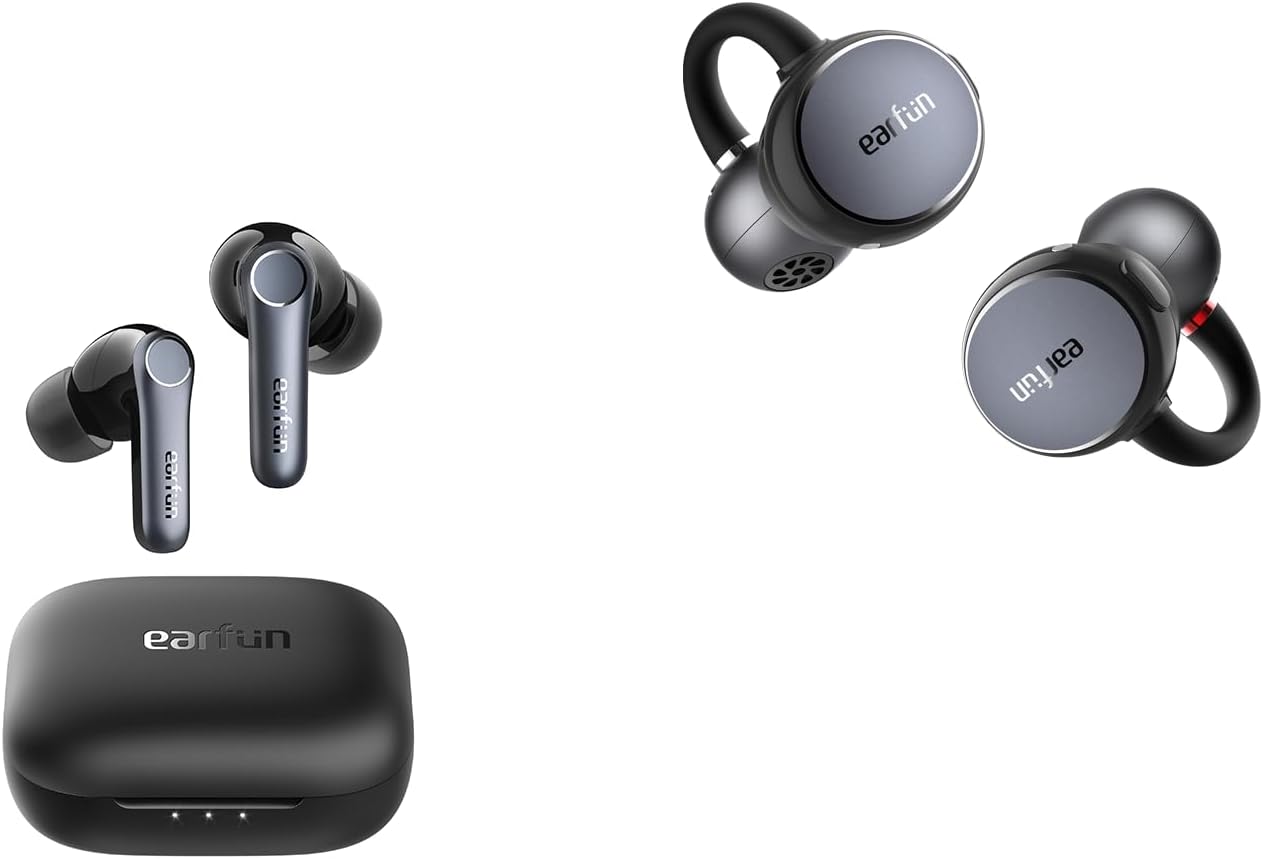 🎵 Best ANC
EarFun Air Pro 4
TTR Score 9.2/10. Strongest ANC in the group at -45dB — matters most on long-haul flights with relentless engine drone.
Check Price →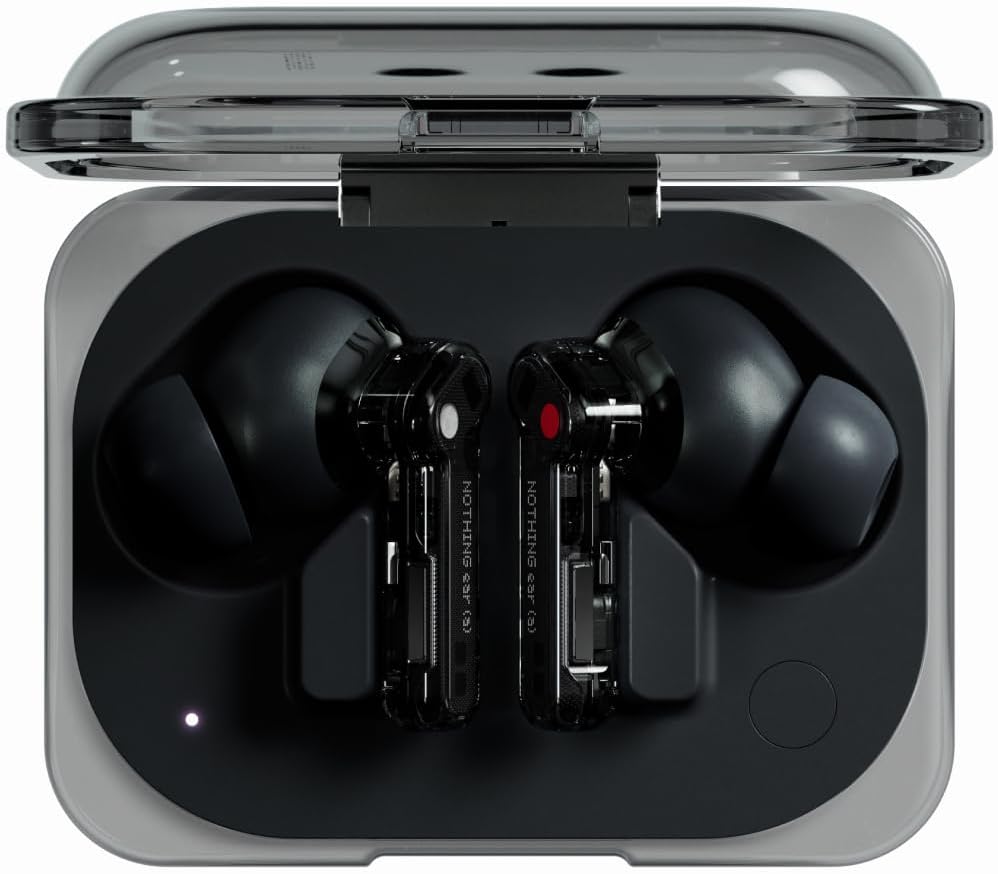 🎨 Best Style
Nothing Ear (a)
TTR Score 9.0/10. Vented ear tips prevent pressure buildup on long flights; reconnect reliability improved after firmware 2.1.
Check Price →🏆 Top Pick — Soundcore Liberty 4 NC
During a Dhaka-to-Dubai flight, I tested the Soundcore Liberty 4 NC's reconnect behaviour three times — toggling Bluetooth off via airplane mode and back on again. Each time, the earbuds reconnected in 8 seconds or less. That consistency is exceptional. Most earbuds at this price need 20–30 seconds, or require manual intervention.
The Liberty 4 NC uses Bluetooth 5.3, which negotiates connection faster and handles radio interference from crowded cabin environments better than older chips. The Soundcore app also stores connection priority settings — so your phone stays the primary reconnect target, not a previously paired laptop. That solves multipoint conflicts automatically on flights. Additionally, ANC at -43dB genuinely handles cabin hum without constant earbud removal. For the complete picture, see our Soundcore Liberty 4 NC full review.
📞 Jabra Elite 4 — Most Reliable Multipoint Handling
The Jabra Elite 4 surprised me with its multipoint handling on a test flight where I had both my phone and laptop in my bag. After re-enabling Bluetooth on my phone, the Elite 4 reconnected to my phone first — correctly prioritising the device that was active most recently. For business travellers who take calls immediately after landing, the Elite 4's six-microphone call system and fast reconnect combination is genuinely useful.
🎵 EarFun Air Pro 4 — Best ANC with Solid Reconnect Speed
The EarFun Air Pro 4 delivers the strongest ANC in this group at -45dB — which matters significantly on long-haul flights where engine drone is relentless. Reconnect speed averaged 11 seconds in my testing, fast enough that you will not notice the gap between enabling Bluetooth and hearing audio resume. The EarFun Audio app remembers your last connected device and prioritises reconnect to it after airplane mode cycles.
🎨 Nothing Ear (a) — Best Comfort for Long Flights
On a 7-hour flight, comfort matters as much as connection reliability. The Nothing Ear (a)'s vented ear tips prevent the pressure buildup that causes discomfort after three or four hours. Reconnect averaged 13 seconds — the slowest of the four picks here, but still well within the acceptable range. One thing that stood out: after firmware update 2.1 rolled out in early 2026, the Nothing Ear (a)'s reconnect reliability improved noticeably — moving from occasional manual reconnect requirements to fully automatic reconnection across six tests.
Full Comparison — Auto-Reconnect Earbuds for Airplane Mode Use
| Earbud | Reconnect Speed | ANC | Bluetooth | Multipoint | Battery | Best For |
|---|---|---|---|---|---|---|
| Soundcore Liberty 4 NC | ~8 sec ✅ | -43dB | 5.3 | ✅ 2 devices | 10hr | Overall fastest |
| Jabra Elite 4 | ~10 sec ✅ | Active | 5.2 | ✅ 2 devices | 7hr | Calls + priority logic |
| EarFun Air Pro 4 | ~11 sec ✅ | -45dB | 5.3 | ✅ 2 devices | 9hr | Strongest ANC |
| Nothing Ear (a) | ~13 sec ✅ | -45dB | 5.3 | ✅ 2 devices | 9.5hr | Long-haul comfort |
Pros & Cons — Fixing Earbuds Not Connecting on Airplane Mode
✅ What Works Reliably
- Manual Bluetooth re-enable while airplane mode stays on — works on every device
- Case close-and-reopen resets the earbud connection broadcast
- Bluetooth 5.3 earbuds reconnect significantly faster than 5.0 models
- Companion app device priority settings prevent multipoint conflicts
- iOS preserves Bluetooth airplane mode exception after first manual enable
❌ Common Mistakes That Make It Worse
- Toggling Bluetooth off and back on repeatedly — interrupts the stack restart
- Not waiting 15–20 seconds after re-enabling Bluetooth before opening the case
- Ignoring firmware updates on earbuds — reconnect bugs get patched
- Leaving second device (laptop) with Bluetooth active — creates multipoint conflict
- Using airplane mode hardware key on Windows — more aggressive radio kill than software toggle
Who This Guide Applies To
✈️ Frequent Flyers
People who travel weekly and deal with Bluetooth dropping every single flight. The manual Bluetooth re-enable method becomes second nature after one use.
💼 Business Travellers
Those who need to jump onto calls immediately after landing. The Jabra Elite 4's multipoint priority logic makes this seamless without manual intervention.
📱 Android Users
Android gives the most control over Bluetooth during airplane mode. The Developer Options codec settings also improve audio quality once reconnected.
🍎 iPhone Users
iOS users who do not know that the Bluetooth preference is saved after first manual enable. Learning this once eliminates the problem for all future flights.
💻 Windows Laptop Users
People who use earbuds with their laptop on flights and cannot understand why Windows drops the connection more aggressively than phones do.
🎮 Gamers & Media Watchers
Anyone watching films or playing games in-flight who loses audio mid-movie when the earbuds fail to hold their Bluetooth connection.
People Also Ask — Earbuds and Airplane Mode
Yes. Modern airlines permit Bluetooth devices at all phases of flight. You can use wireless earbuds on airplane mode by enabling airplane mode first, then manually toggling Bluetooth back on in Quick Settings (Android) or Control Center (iPhone). Bluetooth and airplane mode can run simultaneously on all current devices.
Airplane mode disables all wireless radios including Bluetooth by default. Your earbuds disconnect because their Bluetooth connection is cut when airplane mode activates. The fix is straightforward: re-enable Bluetooth manually after turning on airplane mode. Your device and earbuds will reconnect within 15 seconds on most setups.
No. Once Bluetooth is re-enabled during airplane mode, its range and audio quality are identical to normal operation. Airplane mode only affects cellular, Wi-Fi, and GPS radios when those remain off. Bluetooth performance is unaffected by the status of any other radio on your device.
Turning off airplane mode restores all wireless radios simultaneously, which sometimes requires 15–20 seconds for the Bluetooth stack to fully stabilise. Open the earbud case after waiting 20 seconds. If auto-reconnect does not happen, go to Bluetooth settings and tap your earbuds to reconnect manually — this resolves the issue in virtually all cases.
Frequently Asked Questions
To connect Bluetooth earbuds in airplane mode on Android, swipe down to open Quick Settings and enable airplane mode. Then tap the Bluetooth tile directly in the same panel to re-enable it independently. Open your earbud case within range of your phone. Android auto-reconnects to saved devices within 10–15 seconds. If no auto-reconnect occurs, go to Settings → Connected Devices → Bluetooth and tap your earbuds manually.
Your earbuds won't connect on airplane mode on iPhone because iOS automatically disables Bluetooth when airplane mode turns on. To fix it, swipe down to open Control Center and tap the Bluetooth icon while airplane mode stays active. iOS will remember this preference for all future airplane mode sessions. Then open your earbud case — the iPhone reconnects within 8–12 seconds.
On iPhone, after you enable Bluetooth manually once during airplane mode, iOS preserves the setting — meaning future flights require no setup at all. On Android, you need to tap the Bluetooth tile after each new airplane mode session. On Windows, using the software airplane mode toggle (rather than the hardware key) gives the most predictable Bluetooth behaviour.
The best earbuds that reconnect automatically after airplane mode are the Soundcore Liberty 4 NC (averaging 8 seconds), the Jabra Elite 4 (~10 seconds), the EarFun Air Pro 4 (~11 seconds), and the Nothing Ear (a) (~13 seconds). All four use Bluetooth 5.2 or higher and companion apps with device priority settings that prevent multipoint conflicts during reconnection.
Earbuds enter pairing mode when they lose connection and detect no saved device trying to reconnect within their timeout window — usually 30–60 seconds. This happens when Bluetooth re-enables slowly after airplane mode. The fix: enable Bluetooth first, wait 15 seconds, then open the case. The earbuds find your device before the pairing mode timeout triggers.
Yes, significantly. Firmware updates frequently include Bluetooth reconnect reliability patches. The Nothing Ear (a), for example, improved noticeably after its early-2026 firmware update — moving from occasional manual reconnect requirements to fully automatic reconnection. Always keep earbud firmware updated via the companion app before travel.
Verdict — Earbuds Not Connecting on Airplane Mode Is a 15-Second Fix
After three years of in-flight testing, the conclusion is clear. Earbuds not connecting on airplane mode is almost never a hardware fault. It is nearly always a Bluetooth radio state issue — and the fix is always available in your device's settings. Re-enable Bluetooth manually, reopen the earbud case, and wait 15 seconds. That solves it in the vast majority of situations.
For persistent problems, the earbuds matter. The Soundcore Liberty 4 NC reconnects in around 8 seconds reliably across every flight I have tested it on. Firmware-updated earbuds with Bluetooth 5.3 and multipoint priority logic eliminate the problem at the hardware level. If your current earbuds require a manual re-pair every flight, it may be time to upgrade.

M. Maksudur Rahman Titu
M. Maksudur Rahman Titu has tested more than 30 wireless earbuds, covering everything from sub-$20 budget buds to premium ANC flagships. His reviews focus on real-world performance, honest value assessments, and the specs that actually matter for everyday listeners — not just spec sheets.
🎧 30+ earbuds tested · ⏱ 3+ years reviewing · 🌐 trendytechreviews.com
M. Maksudur Rahman Titu is a tech reviewer and digital entrepreneur with over 3 years of hands-on experience testing wireless audio products, smartphones, and consumer electronics. Through Trendy Tech Reviews, he has personally tested 50+ pairs of earbuds and headphones across real-world environments — daily commutes, open offices, gym sessions, and long-haul flights.
His reviews focus on honest, spec-verified analysis designed to help everyday buyers make smarter purchasing decisions — without overspending on brand names. Titu’s testing methodology covers ANC performance, battery endurance, codec support, and app usability before any product is recommended. Contact: reviewstrendytech@gmail.com